> ## Documentation Index
> Fetch the complete documentation index at: https://docs.captivolabs.com/llms.txt
> Use this file to discover all available pages before exploring further.
# Smokeball
> Log calls, surface contacts, and capture activity automatically in Smokeball using RingCentral App Connect.
Only AU instances are currently supported. US & UK regions are coming soon.
## Overview
The Captivo integration for Smokeball connects your RingCentral phone system directly with Smokeball, so every call your firm makes or receives is automatically matched to the right contact and logged against the right matter — without anyone having to do it manually.
**What it does:**
* Surfaces the matching Smokeball contact when a call comes in or goes out
* Automatically logs call activities against the correct matter, including duration and notes
* Lets you add call notes from directly within the RingCentral dialer
* Uses AI transcriptions to summarise conversations and extract tasks
* Outbound calls directly from Smokeball
***
## Requirements
Before you begin, make sure you have:
* An active **RingCentral** account with App Connect access
* An active **Smokeball** subscription
* **Google Chrome** or **Microsoft Edge** browser.
* Administrator access is not required — any Smokeball user can connect their own account
[AI Conversation Expert (ACE)](https://www.ringcentral.com/ringsense.html) RingCentral license required for logging AI artifacts
During the beta period of App Connect, artifacts will be logged for free. When the feature becomes generally available, RingCentral customers will need to purchase an ACE license to continue logging AI artifacts.
***
## Installation
### Step 1 — Install the App Connect extension
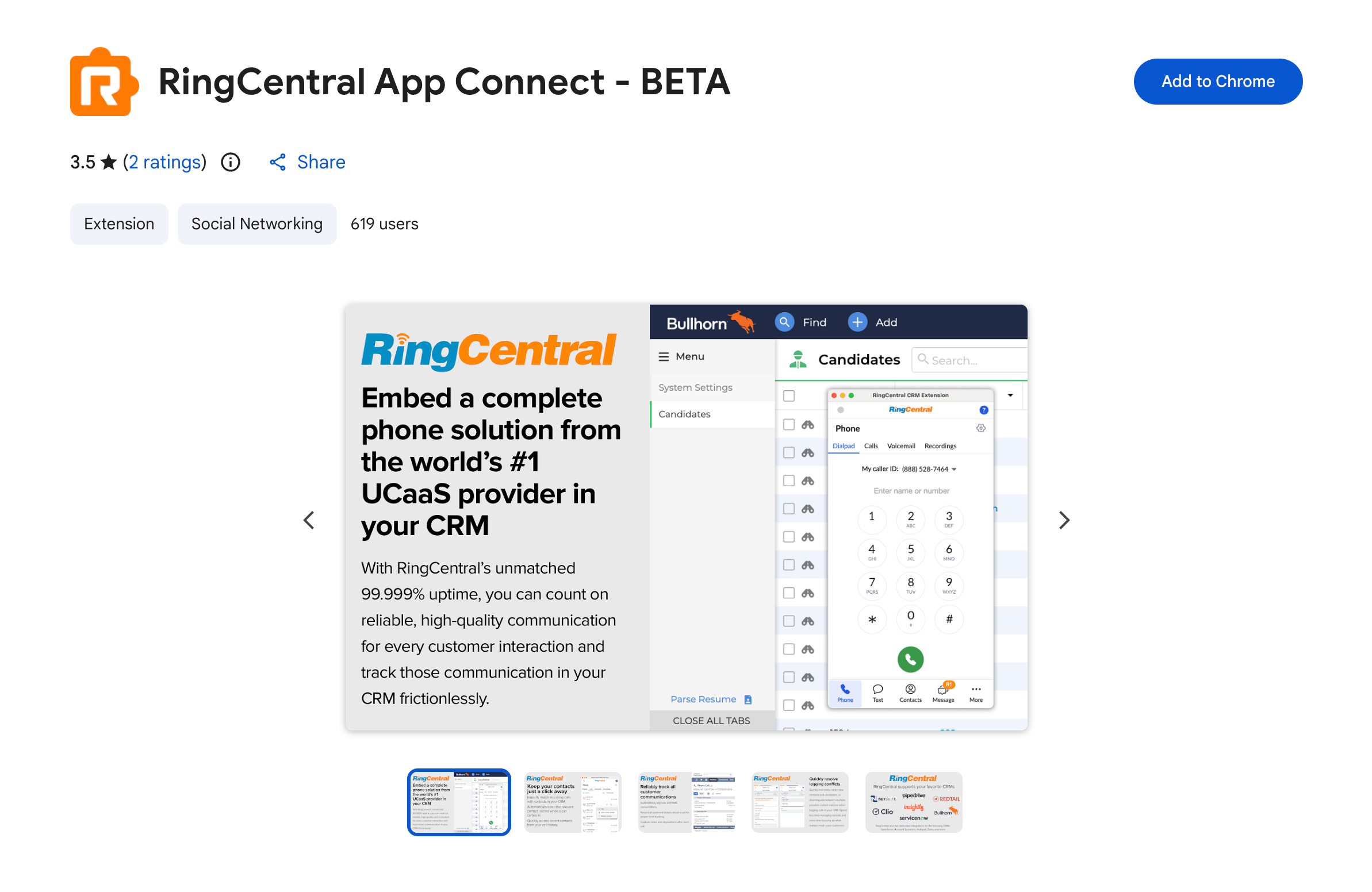
Install the **RingCentral App Connect** extension from the Chrome or Edge Web Store.
[**→ Install RingCentral App Connect**](https://chromewebstore.google.com/detail/ringcentral-app-connect-b/bgpkbcidaabaeioilooghlffdcmlimgk)
If your firm uses managed Chrome policies, your IT administrator may need to allowlist the extension before it can be installed.
***
### Step 2 — Open Smokeball
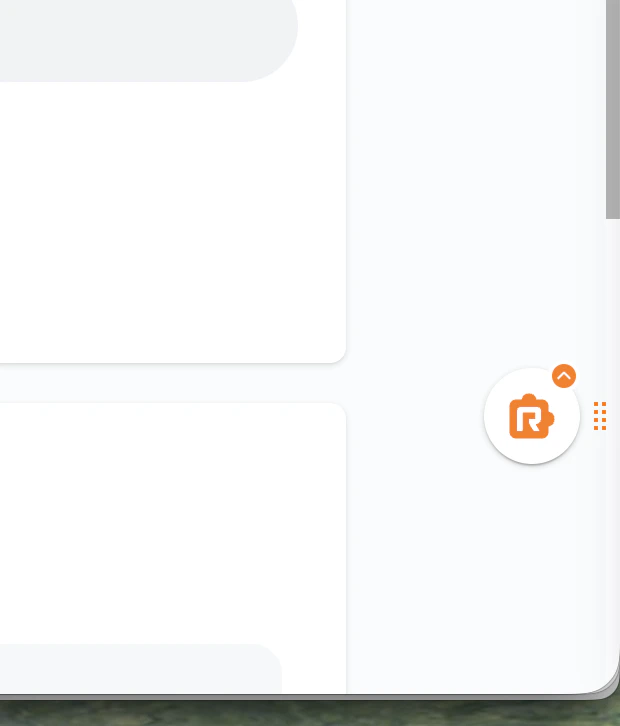
Navigate to your Smokeball account or refresh the page. The orange App Connect button should appear in the corner of the page once you're on a Smokeball domain.
***
### Step 3 — Open App Connect and sign in to RingCentral
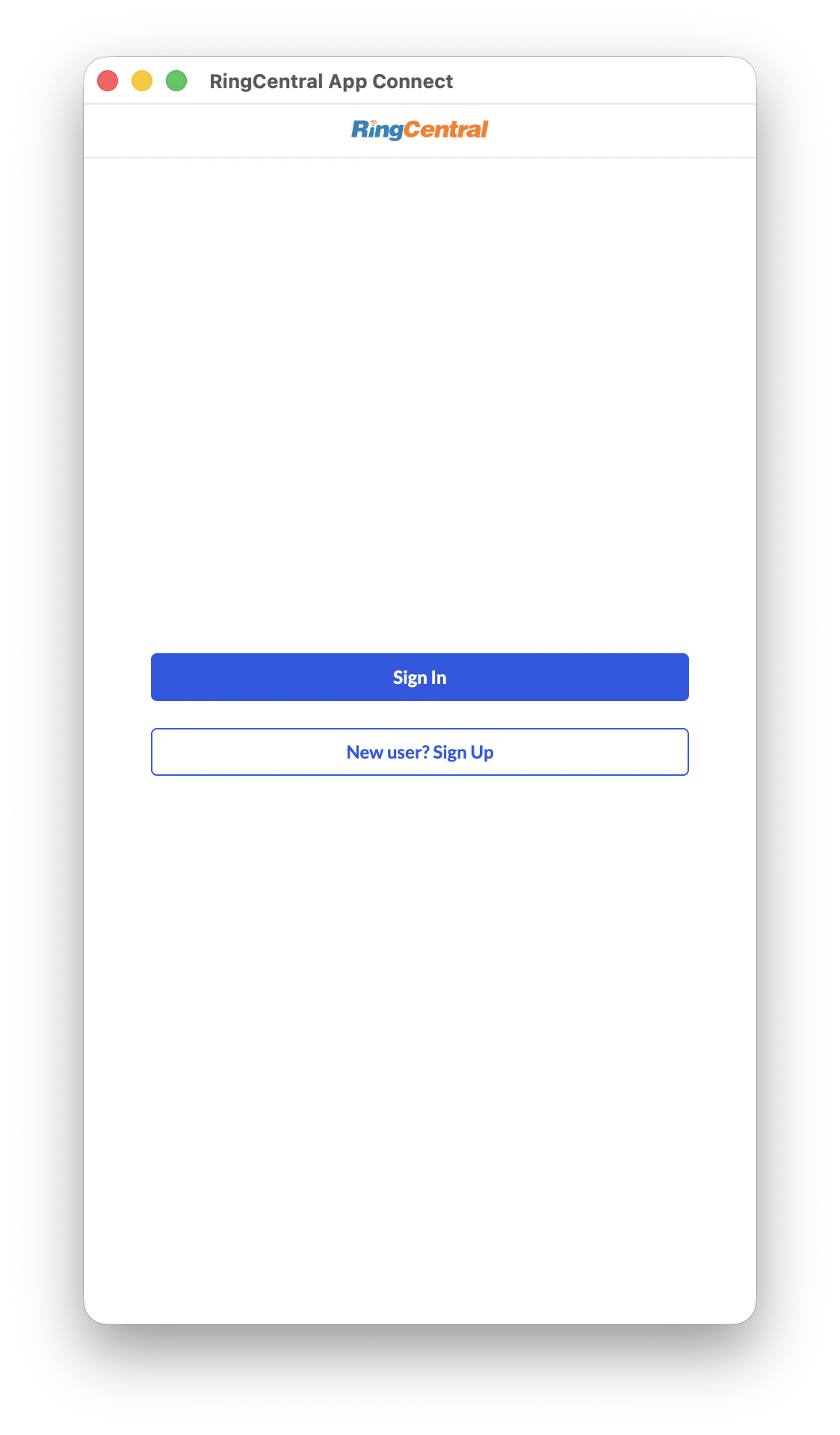
Click the orange App Connect button to open the dialer. If you haven't signed into RingCentral yet, you'll be prompted to do so.
Enter your RingCentral credentials and complete the login. Once signed in, you'll see the main dialer interface.
***
### Step 4 — Connect to Smokeball
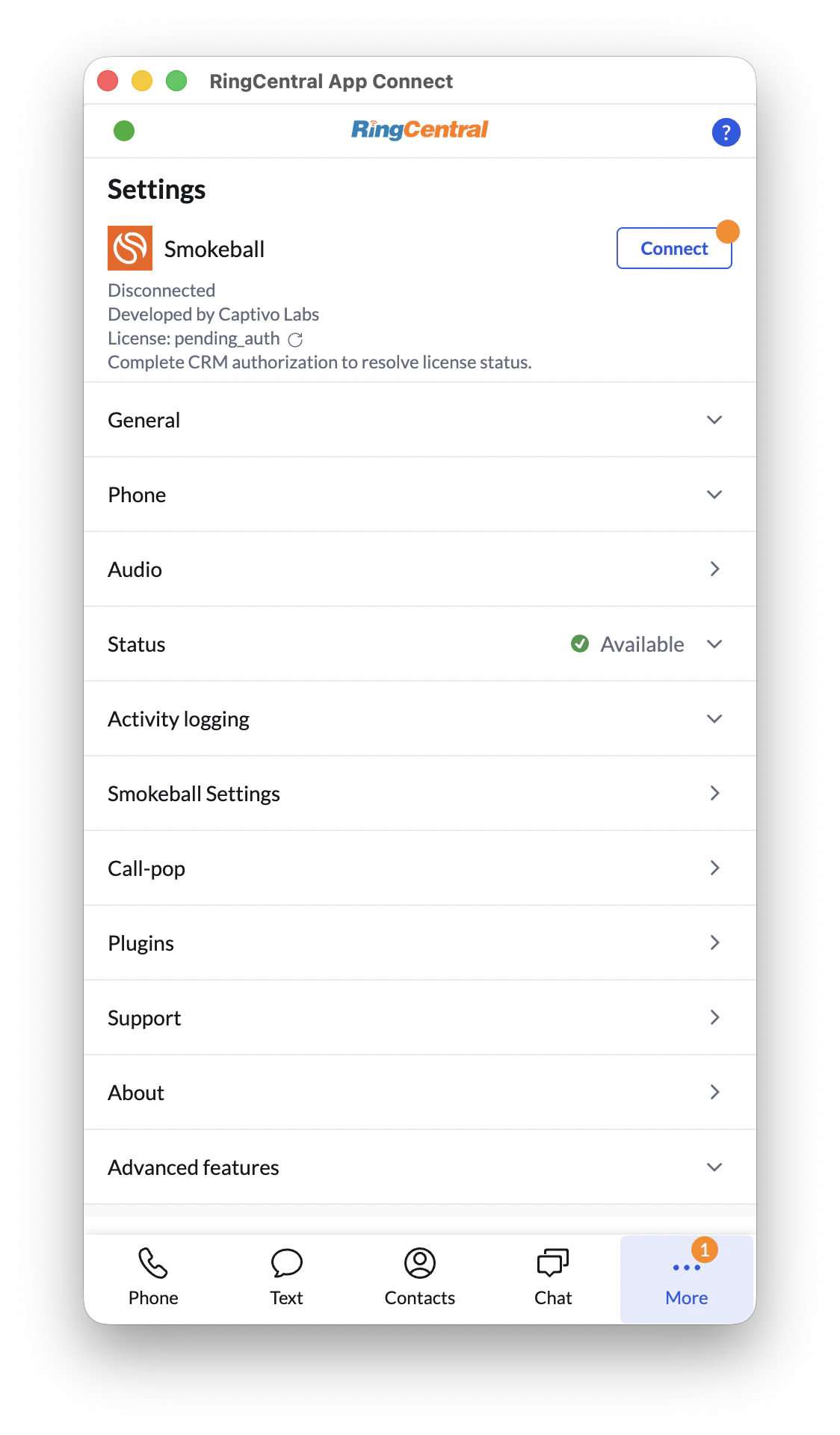
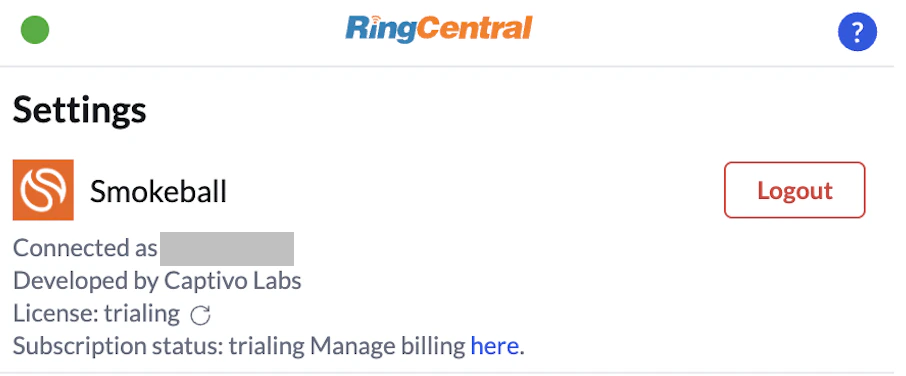
From the dialer, navigate to **More → Settings → Integrations**. You should see **Smokeball by Captivo Labs** listed.
Click **Connect**. A popup window will open asking you to authorise the connection to your Smokeball account.
Log in with your Smokeball credentials and click **Authorise**. The popup will close automatically once the connection is successful.
You should now see a green connected status next to the Smokeball integration. If you see an error, see the [Troubleshooting](#troubleshooting) section below.
***
## Using the Integration
### Incoming calls
When a call comes in, App Connect automatically searches Smokeball for a contact matching the caller's phone number. If a match is found, the contact is displayed in the dialer along with their matter information.
If multiple contacts match the number, you'll be asked to select the correct one.
If no contact is found, you'll have the option to create a new contact in Smokeball directly from the dialer.
***
### Outgoing calls
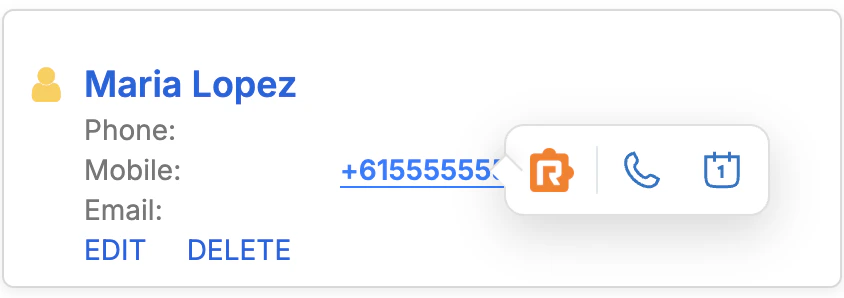
Click any phone number in Smokeball to dial it directly through RingCentral. App Connect will automatically match the contact and pre-populate the logging form.
***
### Logging a call
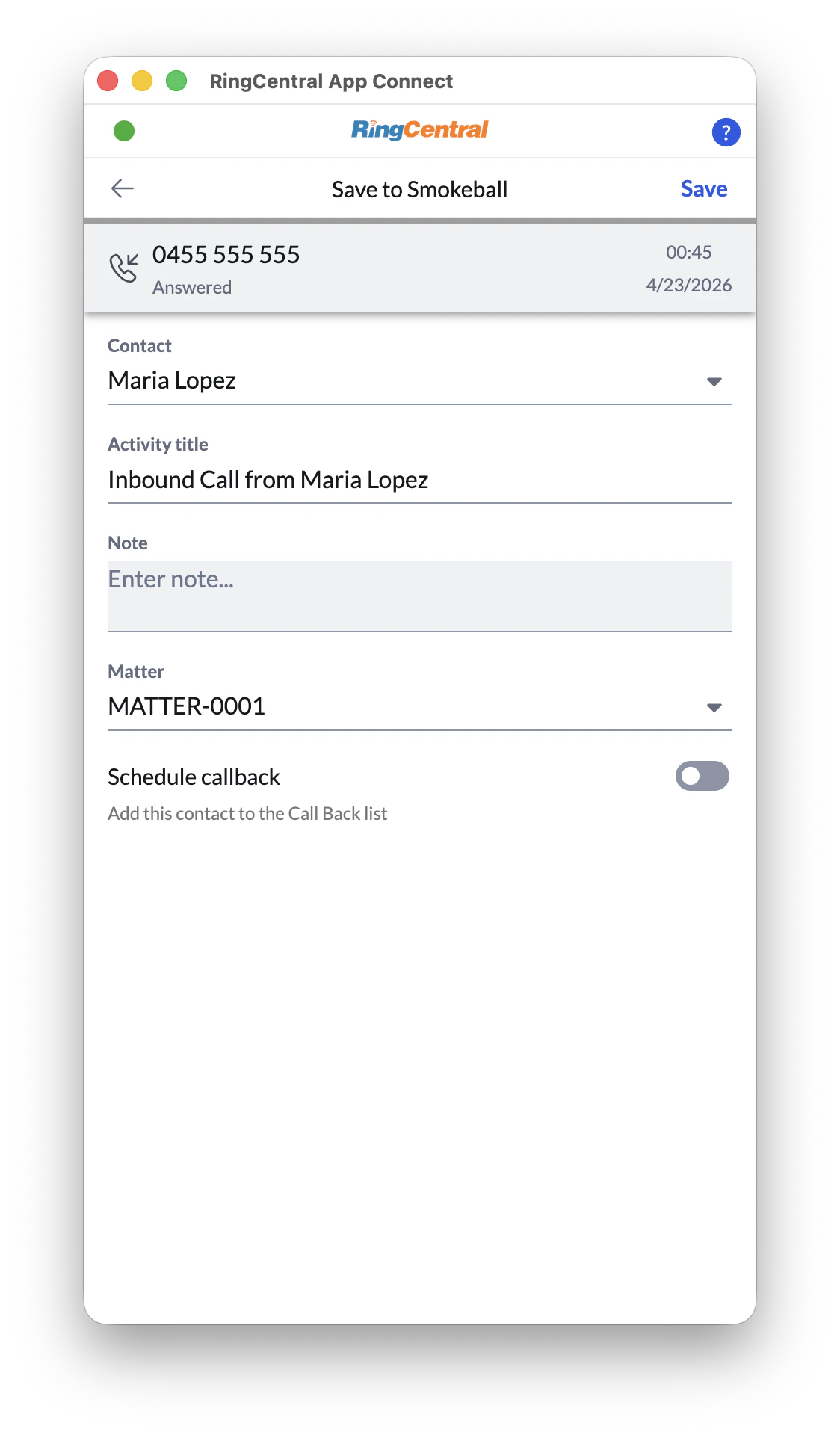
When a call ends, the call logging panel appears automatically. From here you can:
* Confirm or change the matched contact
* Select the matter to log the activity against
* Add a note about the call
* Edit the activity title
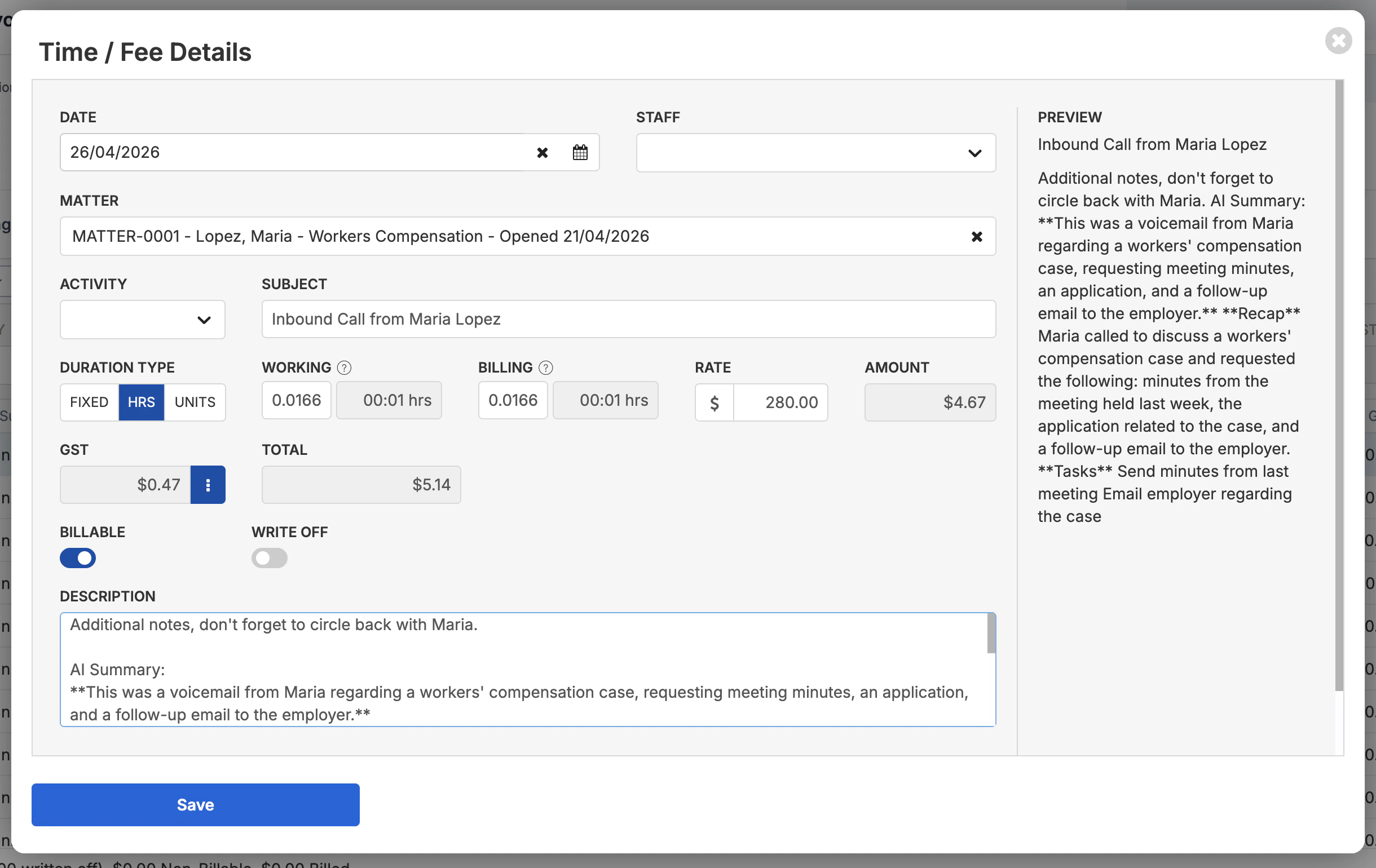
Click **Save** to log the activity to Smokeball. The activity will appear in the matter file immediately.
If you close the logging panel without saving, the call will not be logged. You can re-open recent calls from the call history tab.
***
## Configuration
### Billing Rate and Billable Toggle
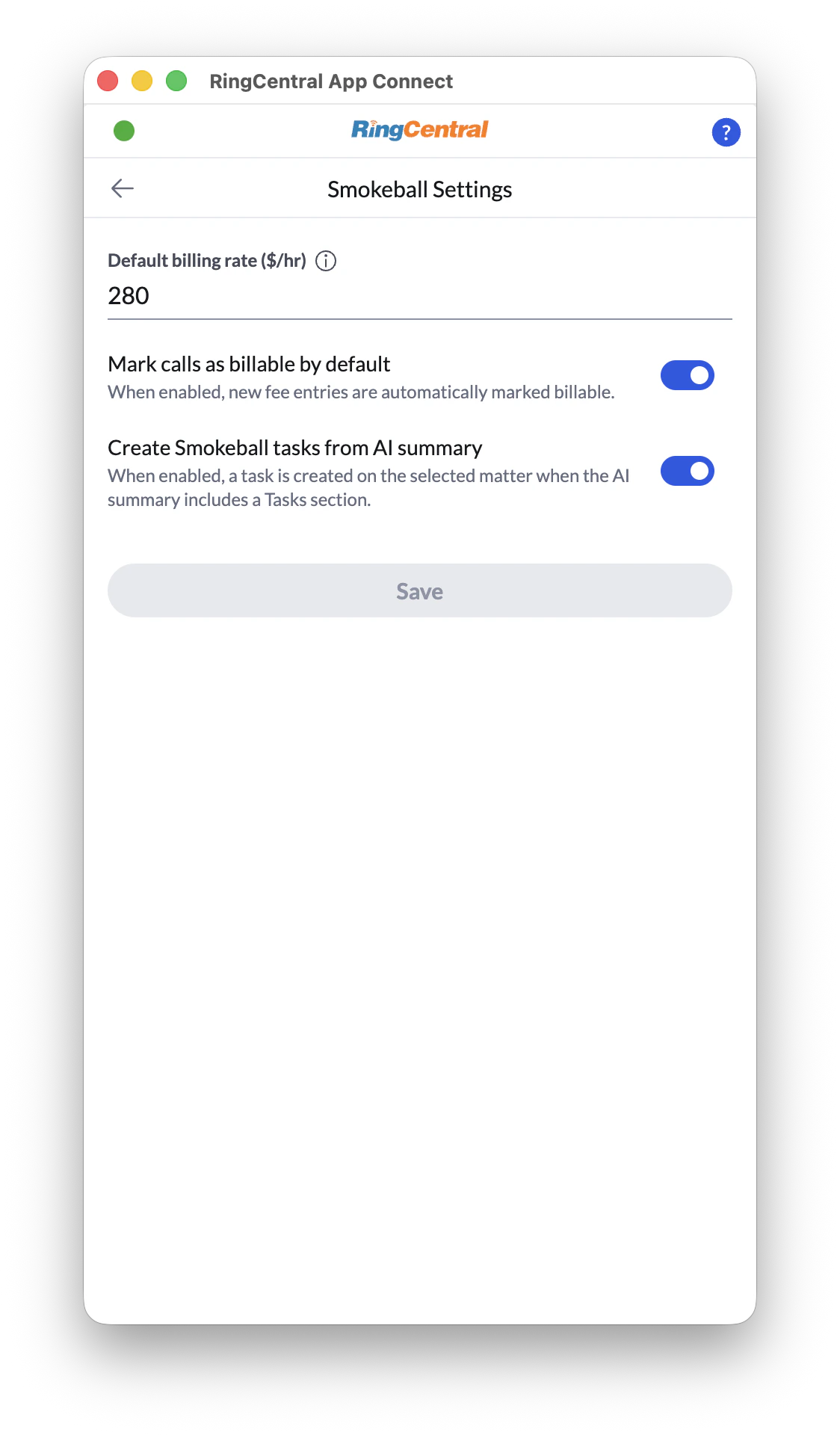
Set hourly billing rate for calls. Disable billable toggle to disable automatic billing entry in call logs.
### Tasks
When enabled, any tasks mentioned in the call transcription will be automatically extracted and entered as a Task inside Smokeball.
***
### Auto-logging
By default, the logging panel appears after each call and waits for you to save manually. To enable automatic logging without the save prompt:
Go to **More → Settings → Call Logging** and enable **Auto-save call logs**.
With auto-logging enabled, every call will be logged automatically including short or accidental calls. You can delete unwanted activities directly in Smokeball.
***
## Subscription and Billing
The Captivo integration is a paid service billed per user per month. Each person at your firm who connects their Smokeball account uses one seat.
To manage your firm's subscription, billing, or payment details, click the **Manage billing** link in the App Connect integration settings.
This will open the billing portal where you can view invoices, update your payment method, or cancel your subscription.
The first person at your firm to connect their account starts a free trial automatically. No payment details are required during the trial period.
***
## Disconnecting
To disconnect your Smokeball account:
1. Open App Connect and go to **More → Settings → Integrations**
2. Click the settings icon next to **Smokeball by Captivo Labs**
3. Click **Disconnect**
Your call history and logged activities in Smokeball will not be affected. Only the live connection is removed.
***
## Troubleshooting
### The App Connect button doesn't appear on Smokeball
* Make sure you're using Chrome or a Chromium-based browser
* Confirm the extension is enabled at `chrome://extensions`
* Try refreshing the Smokeball page
* If your browser is managed by your firm's IT, the extension may need to be allowlisted
### Smokeball is listed as an integration but I can't connect
* Make sure you're logged into Smokeball in the same browser before clicking Connect
* Check that your Smokeball account is active and your subscription is current
* Try disconnecting and reconnecting
### Contacts aren't being matched on incoming calls
* Check that the contact's phone number in Smokeball is saved in a format App Connect recognises
* Confirm the contact exists in Smokeball under the number the call is coming from
### The call was logged to the wrong matter
* Open the activity in Smokeball and move it to the correct matter manually
* On the next call, use the matter dropdown in the logging panel to select the correct matter before saving
### My session expired and I'm being asked to reconnect
* This happens if you haven't used the integration for an extended period
* Simply click **Connect** again in the integration settings and re-authorise with your Smokeball credentials
* Your previous call logs and activities are unaffected
***
## Getting Help
If you're experiencing an issue not covered here, our support team is happy to help.
* **Documentation:** [docs.captivolabs.com](https://docs.captivolabs.com)
* **Email:** [support@captivolabs.com](mailto:support@captivolabs.com)
Please include your RingCentral account number and a brief description of the issue when contacting support.
 ***
### Step 3 — Open App Connect and sign in to RingCentral
Click the orange App Connect button to open the dialer. If you haven't signed into RingCentral yet, you'll be prompted to do so.
***
### Step 3 — Open App Connect and sign in to RingCentral
Click the orange App Connect button to open the dialer. If you haven't signed into RingCentral yet, you'll be prompted to do so.
 Enter your RingCentral credentials and complete the login. Once signed in, you'll see the main dialer interface.
***
### Step 4 — Connect to Smokeball
From the dialer, navigate to **More → Settings → Integrations**. You should see **Smokeball by Captivo Labs** listed.
Enter your RingCentral credentials and complete the login. Once signed in, you'll see the main dialer interface.
***
### Step 4 — Connect to Smokeball
From the dialer, navigate to **More → Settings → Integrations**. You should see **Smokeball by Captivo Labs** listed.
 Click **Connect**. A popup window will open asking you to authorise the connection to your Smokeball account.
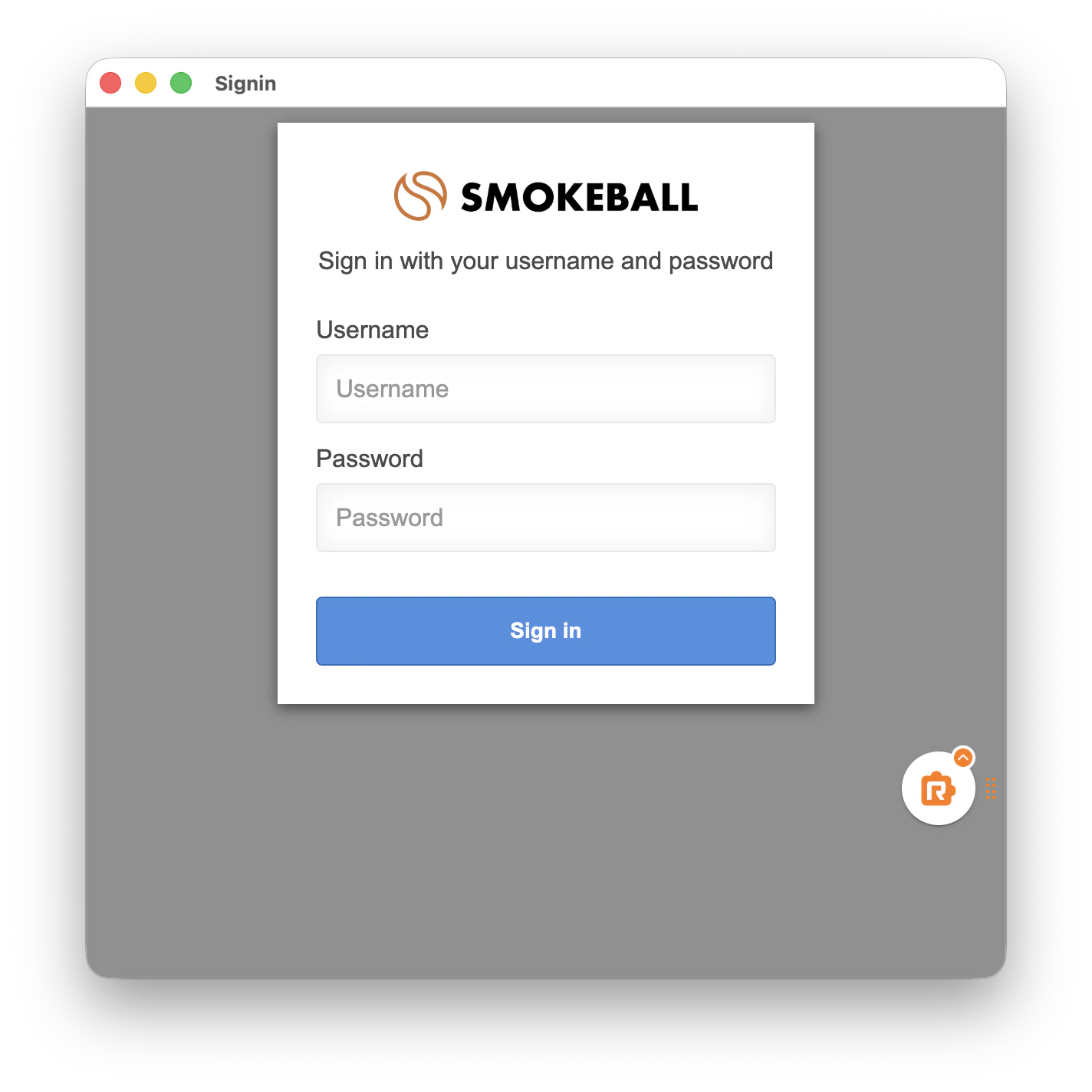 Log in with your Smokeball credentials and click **Authorise**. The popup will close automatically once the connection is successful.
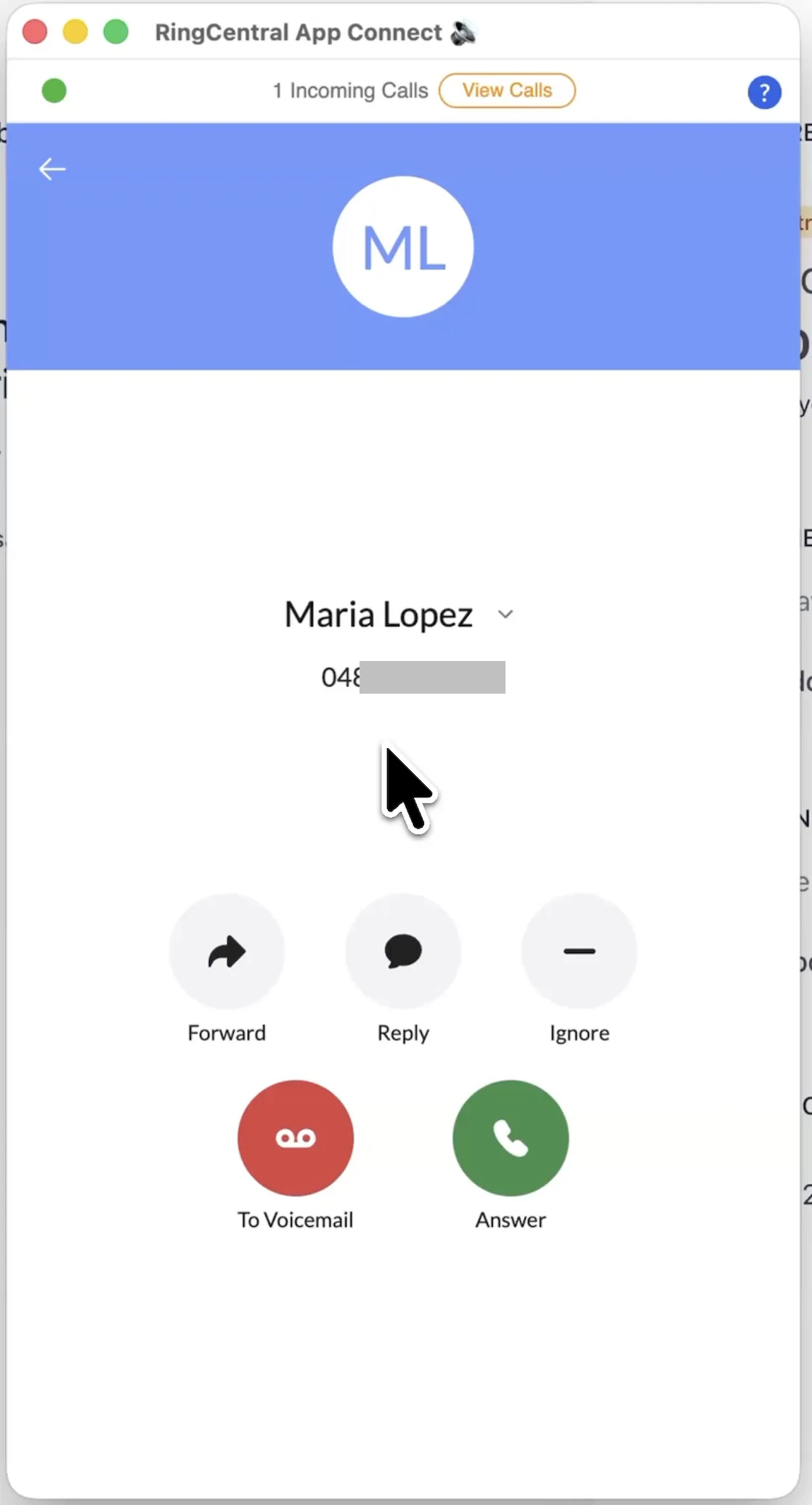 If multiple contacts match the number, you'll be asked to select the correct one.
If no contact is found, you'll have the option to create a new contact in Smokeball directly from the dialer.
***
### Outgoing calls
Click any phone number in Smokeball to dial it directly through RingCentral. App Connect will automatically match the contact and pre-populate the logging form.
If multiple contacts match the number, you'll be asked to select the correct one.
If no contact is found, you'll have the option to create a new contact in Smokeball directly from the dialer.
***
### Outgoing calls
Click any phone number in Smokeball to dial it directly through RingCentral. App Connect will automatically match the contact and pre-populate the logging form.
 ***
### Logging a call
When a call ends, the call logging panel appears automatically. From here you can:
* Confirm or change the matched contact
* Select the matter to log the activity against
* Add a note about the call
* Edit the activity title
***
### Logging a call
When a call ends, the call logging panel appears automatically. From here you can:
* Confirm or change the matched contact
* Select the matter to log the activity against
* Add a note about the call
* Edit the activity title
 Click **Save** to log the activity to Smokeball. The activity will appear in the matter file immediately.
 ***
### Auto-logging
By default, the logging panel appears after each call and waits for you to save manually. To enable automatic logging without the save prompt:
Go to **More → Settings → Call Logging** and enable **Auto-save call logs**.
***
### Auto-logging
By default, the logging panel appears after each call and waits for you to save manually. To enable automatic logging without the save prompt:
Go to **More → Settings → Call Logging** and enable **Auto-save call logs**.