Go to Admin section
From the More menu, select Admin.You must already have a connected CRM and be a RingCentral Admin user to access this section.
Enable Server-Side Call Logging
Click on Server-side call logging (Beta) > Server-side logging. Set the value to Enable for Account. Click Save.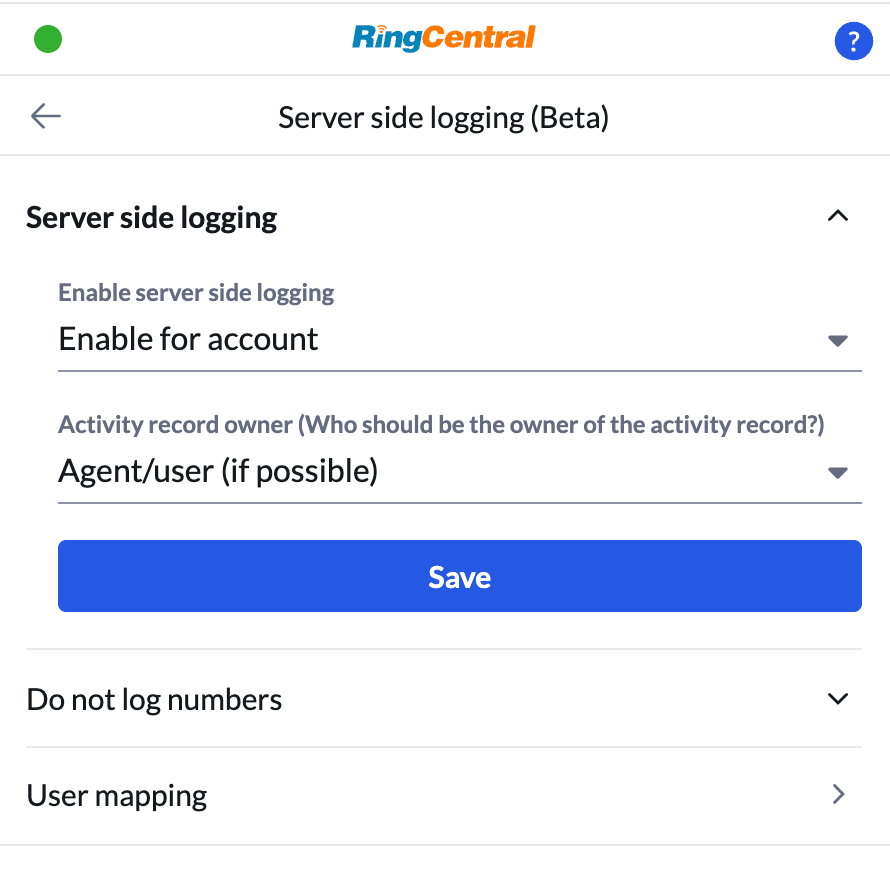
Enable transcriptions, AI summaries, & call recording links
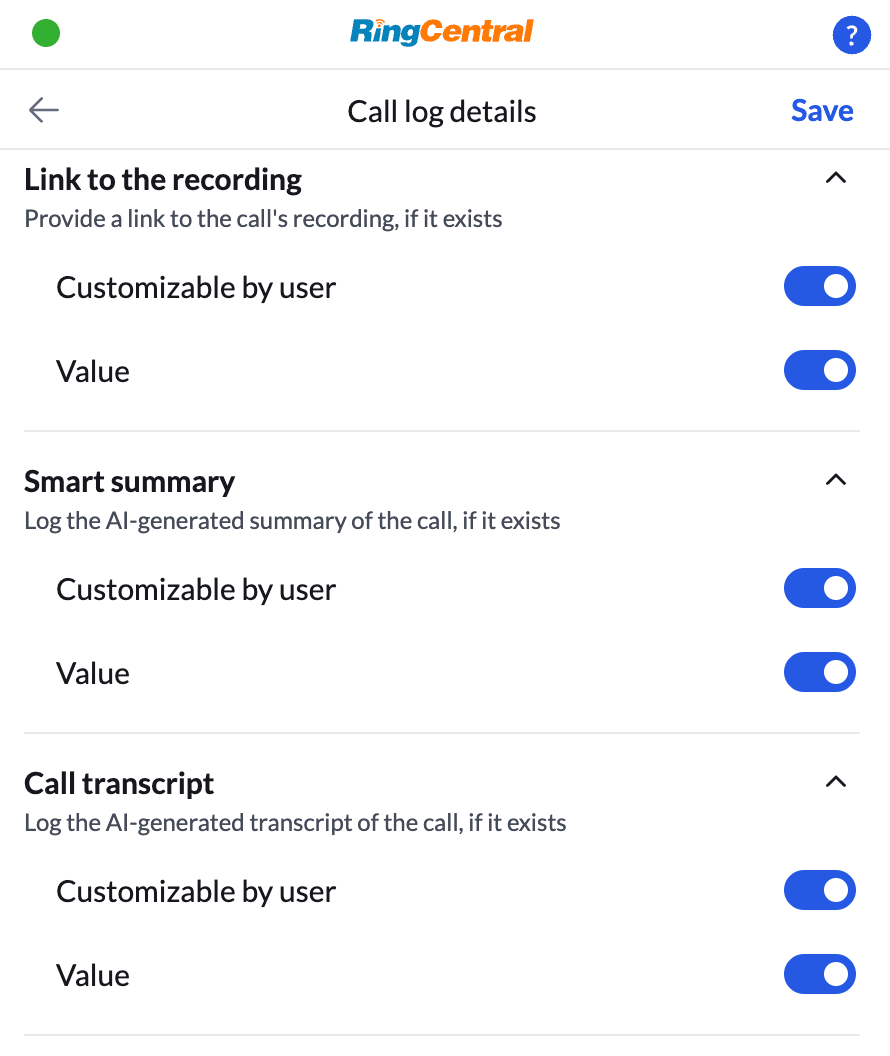
Go to the main Admin menu then Managed settings > Activity Logging > Call log details. Scroll down and expand Call transcript, Smart summary, and Link to recording. Toggle the Values to on. That’s it. Now, when any call completes, whether you’re at your desk or on your mobile, the call will be logged to your connected CRM along with call details and summaries.Depending on the duration of the call, it can take several minutes before your call summary is written to your CRM.
Exclude numbers from automatic logging
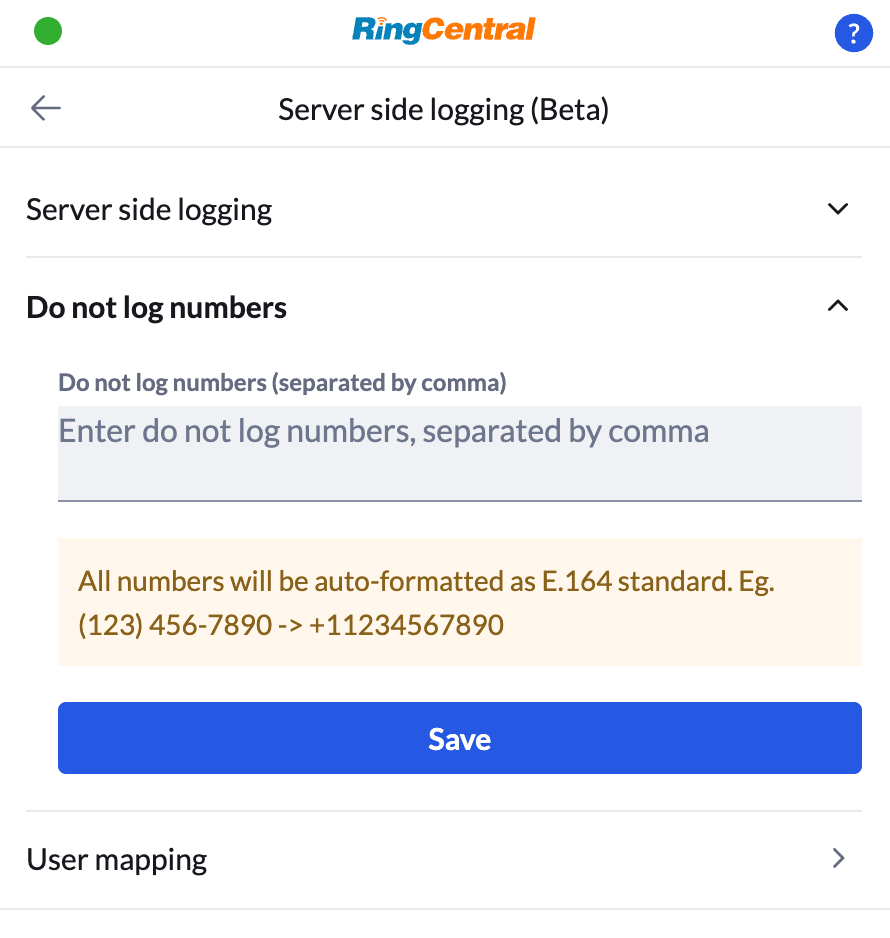
If certain users don’t want every call logged in the connected CRM, Admins can add these numbers to a blocked list. Click Server-side call logging (Beta) > Do not log numbers and enter a phone numbers separated by a comma. Those numbers will now be excluded from automatic call logging in the connected CRM.