

Now compatible with AU, US, & UK instances.
Overview
The Captivo integration for Smokeball connects your RingCentral phone system directly with Smokeball, so every call your firm makes or receives is automatically matched to the right contact and logged against the right matter — without anyone having to do it manually. What it does:- Surfaces the matching Smokeball contact when a call comes in or goes out
- Automatically logs call activities against the correct matter, including duration and notes
- Lets you add call notes from directly within the RingCentral dialer
- Uses AI transcriptions to summarise conversations and extract tasks
- Outbound calls directly from Smokeball
Requirements
Before you begin, make sure you have:- An active RingCentral account with App Connect access
- An active Smokeball subscription
- Google Chrome or Microsoft Edge browser.
- Administrator access is not required — any Smokeball user can connect their own account
Installation
Step 1 — Install the App Connect extension
Install the RingCentral App Connect extension from the Chrome or Edge Web Store. → Install RingCentral App Connect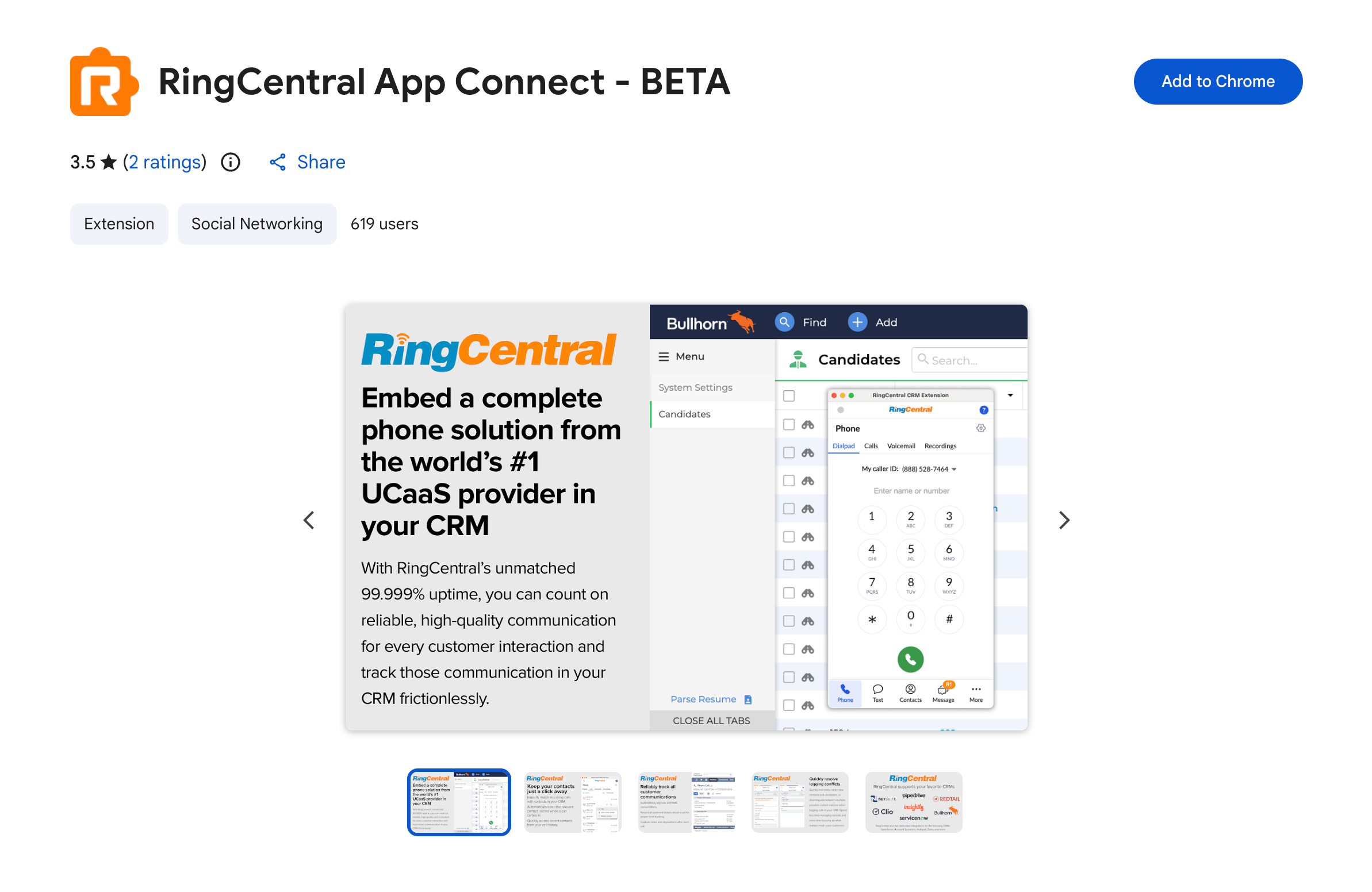
If your firm uses managed Chrome policies, your IT administrator may need to allowlist the extension before it can be installed.
Step 2 — Open Smokeball
Navigate to your Smokeball account or refresh the page. The orange App Connect button should appear in the corner of the page once you’re on a Smokeball domain.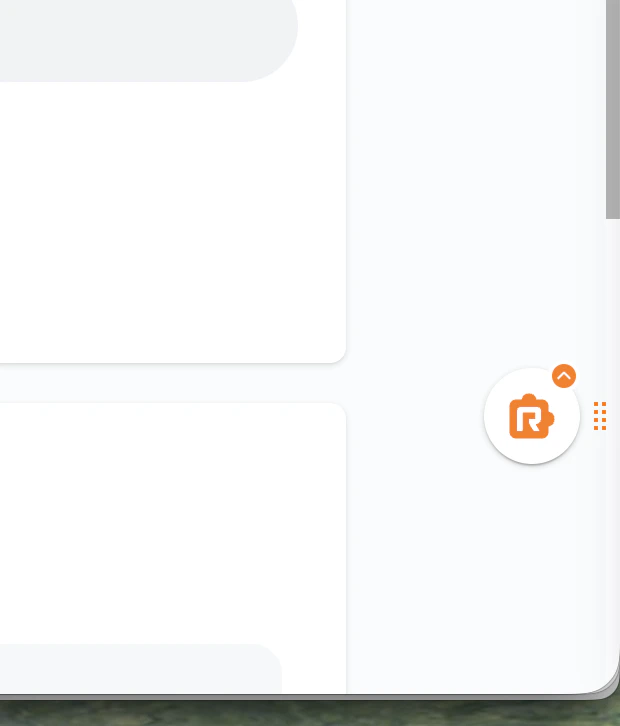
Step 3 — Open App Connect and sign in to RingCentral
Click the orange App Connect button to open the dialer. If you haven’t signed into RingCentral yet, you’ll be prompted to do so.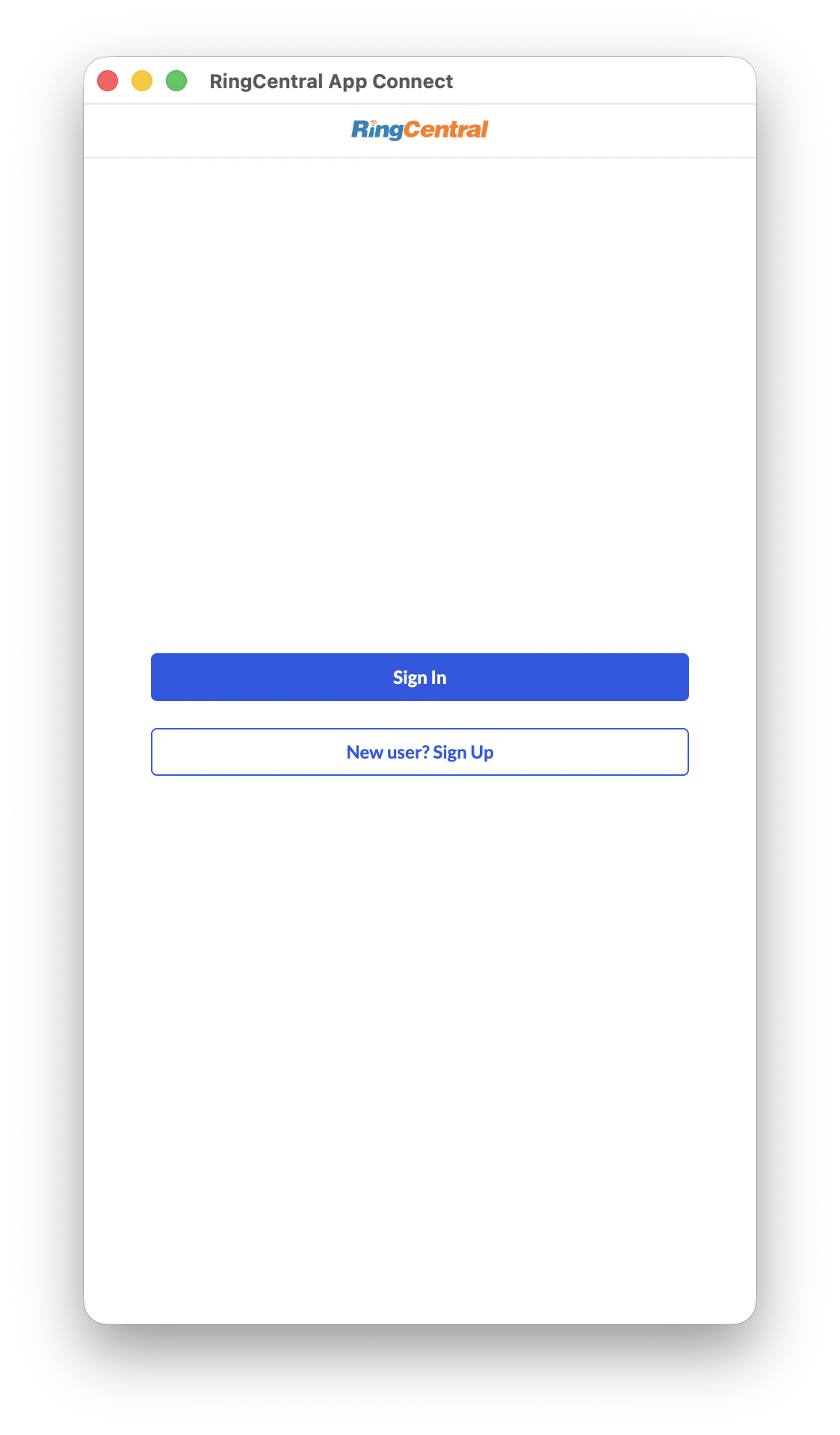
Step 4 — Connect to Smokeball
From the dialer, navigate to More → Settings → Integrations. You should see Smokeball by Captivo Labs listed.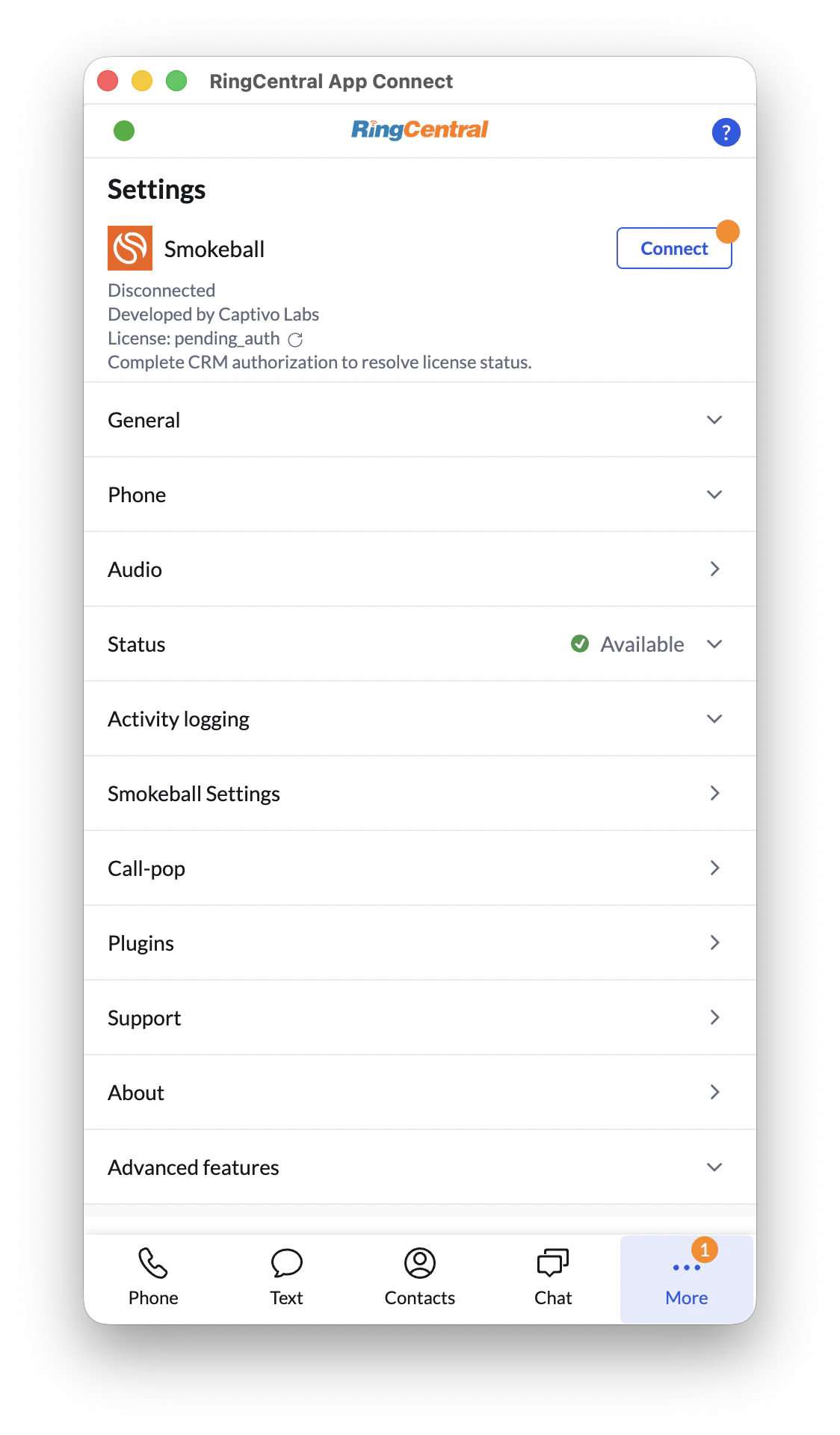
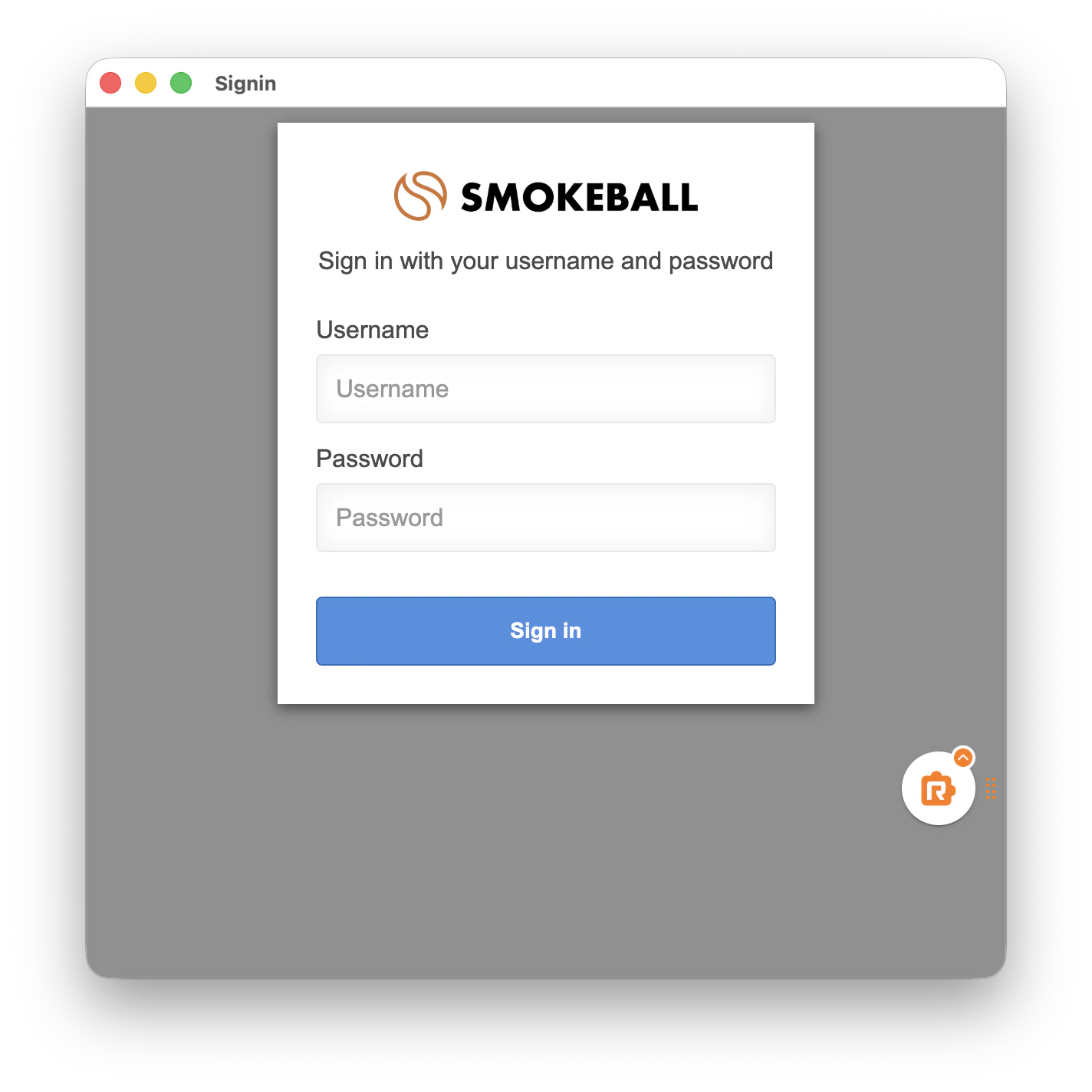
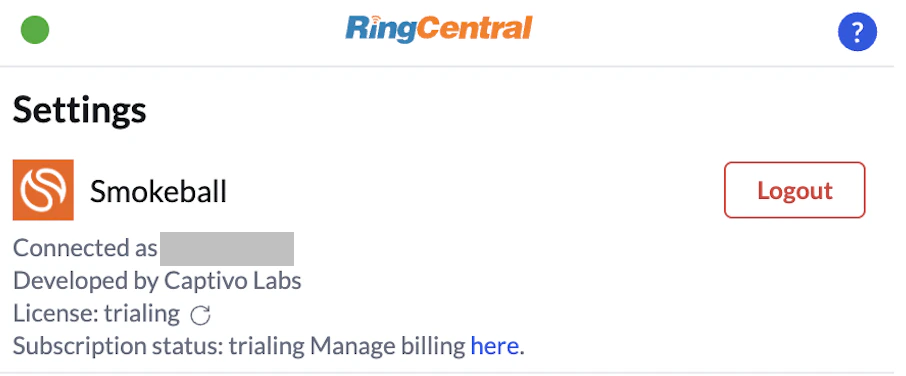
You should now see a green connected status next to the Smokeball integration. If you see an error, see the Troubleshooting section below.
Using the Integration
Incoming calls
When a call comes in, App Connect automatically searches Smokeball for a contact matching the caller’s phone number. If a match is found, the contact is displayed in the dialer along with their matter information.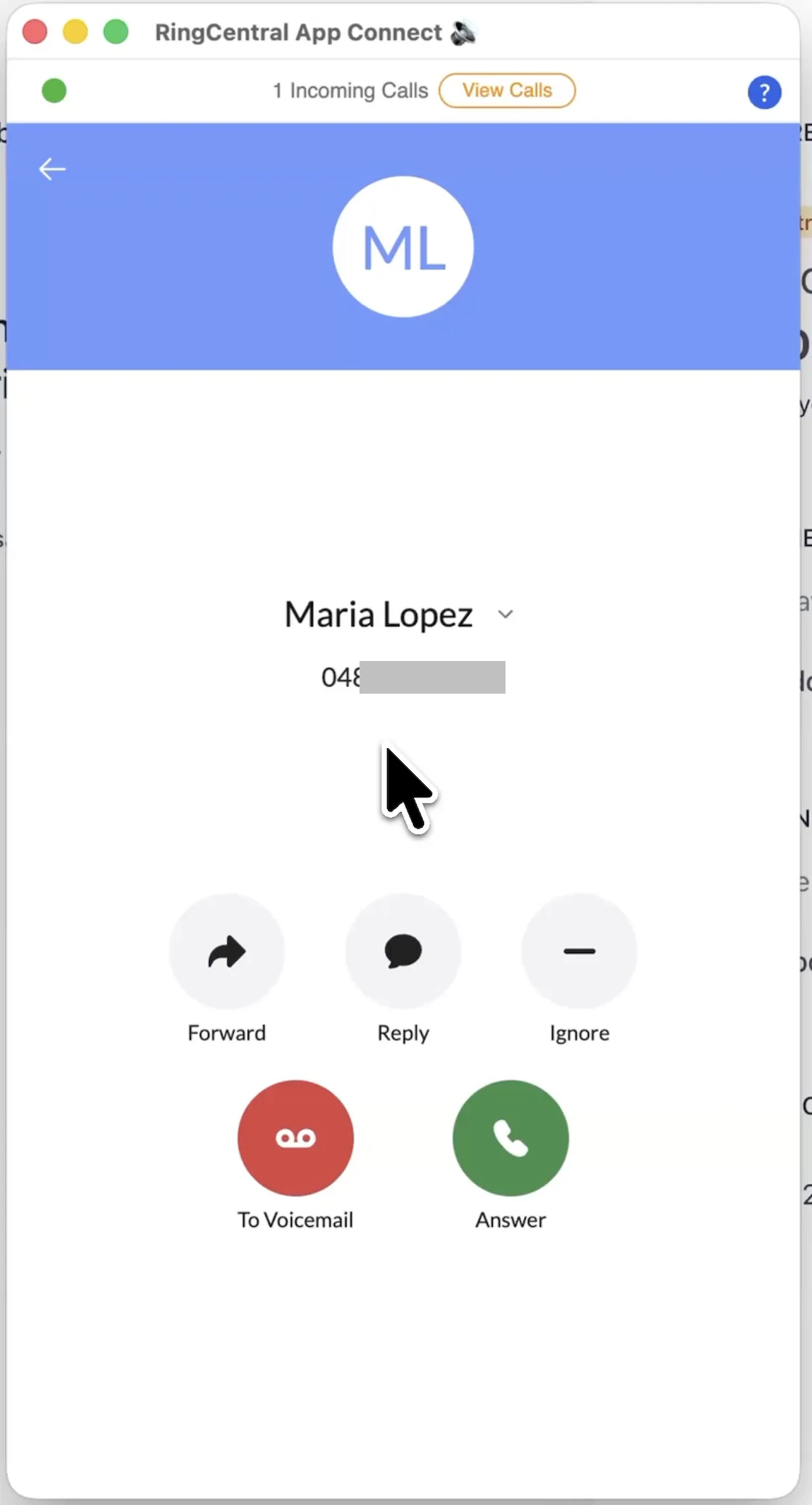
Outgoing calls
Click any phone number in Smokeball to dial it directly through RingCentral. App Connect will automatically match the contact and pre-populate the logging form.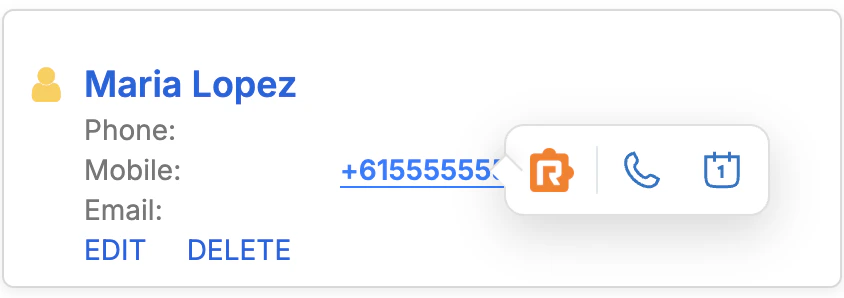
Logging a call
When a call ends, the call logging panel appears automatically. From here you can:- Confirm or change the matched contact
- Select the matter to log the activity against
- Add a note about the call
- Edit the activity title
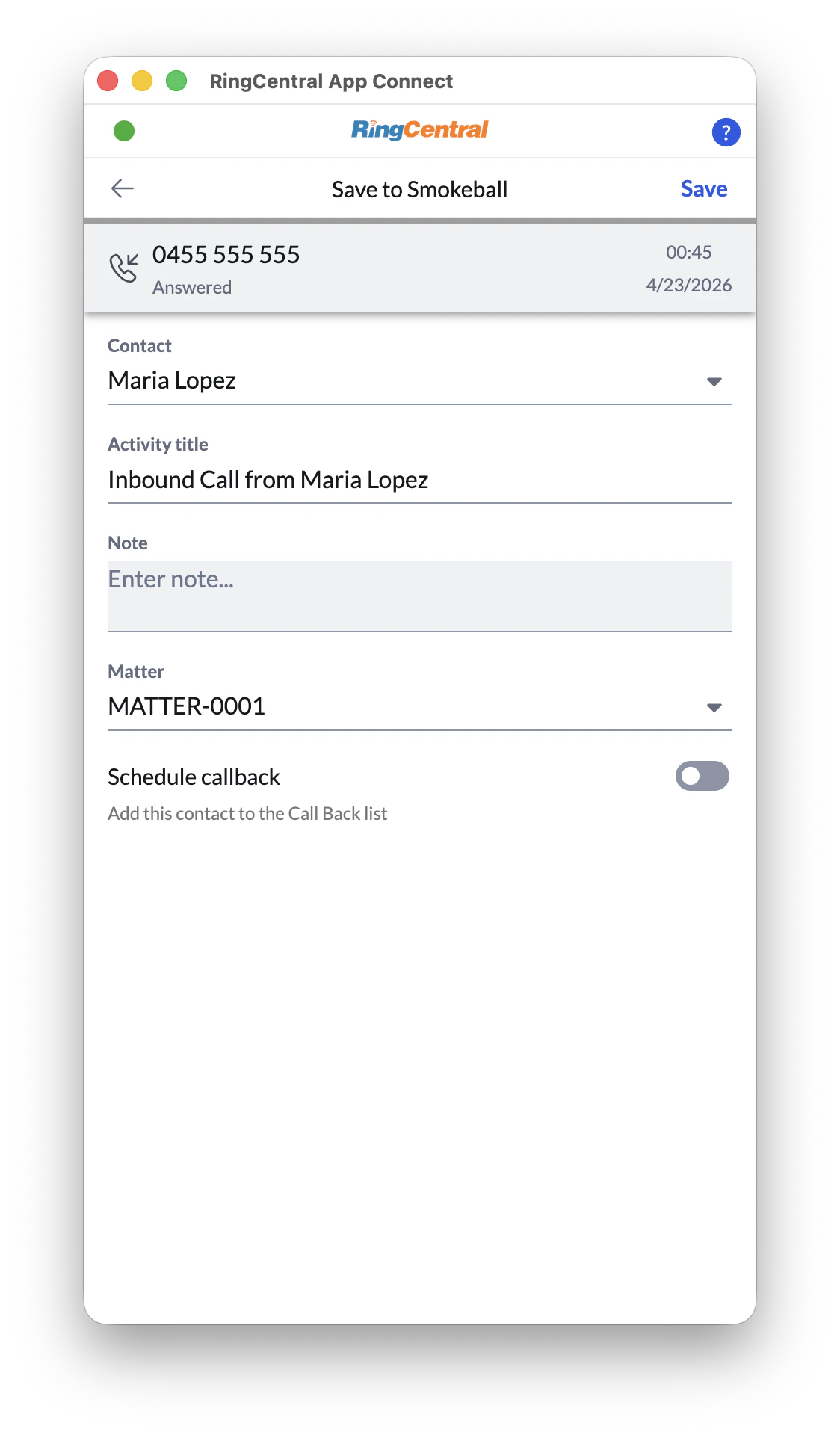
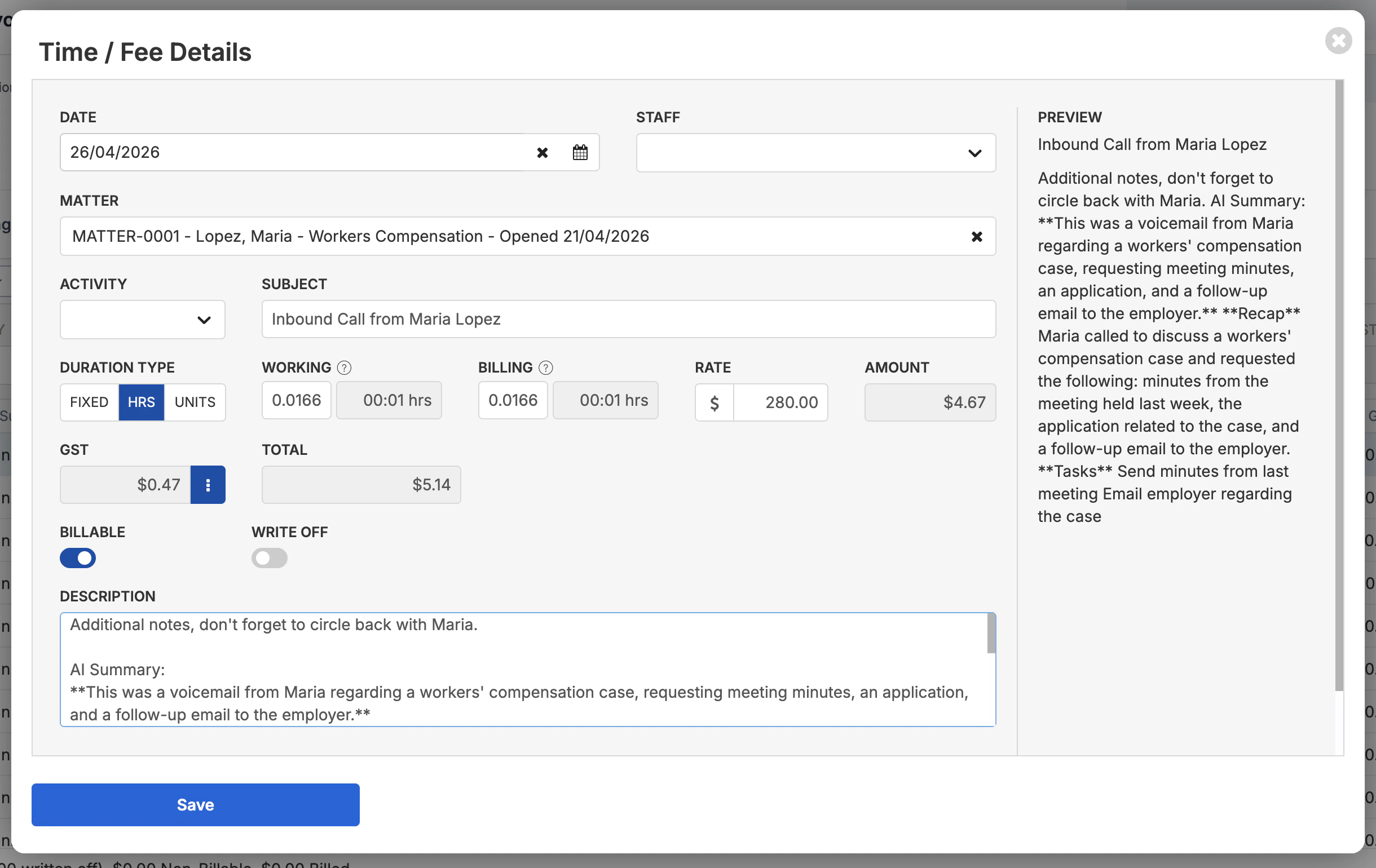
If you close the logging panel without saving, the call will not be logged. You can re-open recent calls from the call history tab.
Configuration
Billing Rate and Billable Toggle
Set hourly billing rate for calls. Disable billable toggle to disable automatic billing entry in call logs.Tasks
When enabled, any tasks mentioned in the call transcription will be automatically extracted and entered as a Task inside Smokeball.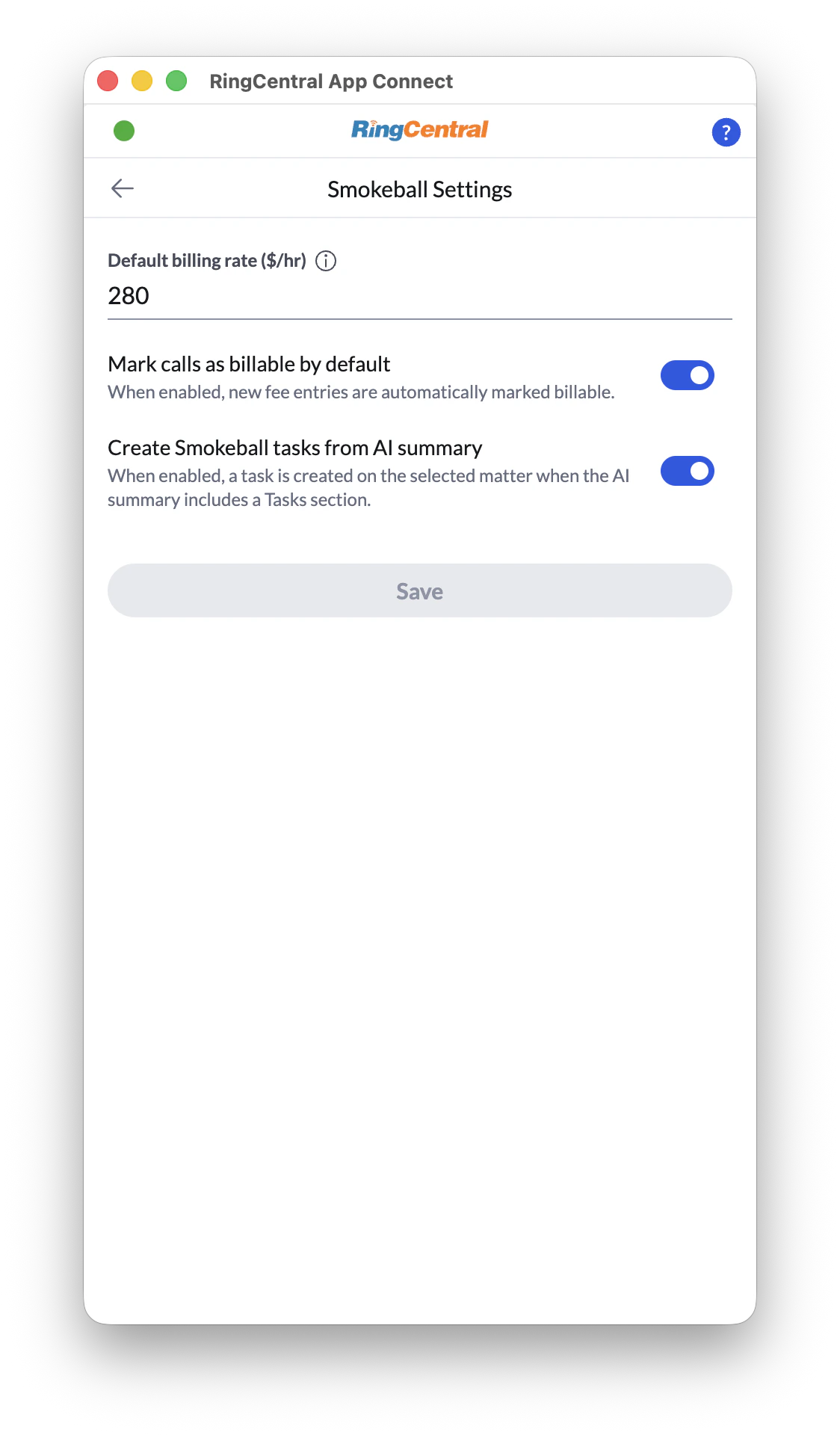
Auto-logging
By default, the logging panel appears after each call and waits for you to save manually. To enable automatic logging without the save prompt: Go to More → Settings → Call Logging and enable Auto-save call logs.Subscription and Billing
The Captivo integration is a paid service billed per user per month. Each person at your firm who connects their Smokeball account uses one seat. To manage your firm’s subscription, billing, or payment details, click the Manage billing link in the App Connect integration settings.The first person at your firm to connect their account starts a free trial automatically. No payment details are required during the trial period.
Disconnecting
To disconnect your Smokeball account:- Open App Connect and go to More → Settings → Integrations
- Click the settings icon next to Smokeball by Captivo Labs
- Click Disconnect
Troubleshooting
The App Connect button doesn’t appear on Smokeball
- Make sure you’re using Chrome or a Chromium-based browser
- Confirm the extension is enabled at
chrome://extensions - Try refreshing the Smokeball page
- If your browser is managed by your firm’s IT, the extension may need to be allowlisted
Smokeball is listed as an integration but I can’t connect
- Make sure you’re logged into Smokeball in the same browser before clicking Connect
- Check that your Smokeball account is active and your subscription is current
- Try disconnecting and reconnecting
Contacts aren’t being matched on incoming calls
- Check that the contact’s phone number in Smokeball is saved in a format App Connect recognises
- Confirm the contact exists in Smokeball under the number the call is coming from
The call was logged to the wrong matter
- Open the activity in Smokeball and move it to the correct matter manually
- On the next call, use the matter dropdown in the logging panel to select the correct matter before saving
My session expired and I’m being asked to reconnect
- This happens if you haven’t used the integration for an extended period
- Simply click Connect again in the integration settings and re-authorise with your Smokeball credentials
- Your previous call logs and activities are unaffected
Getting Help
If you’re experiencing an issue not covered here, our support team is happy to help.- Documentation: docs.captivolabs.com
- Email: support@captivolabs.com