

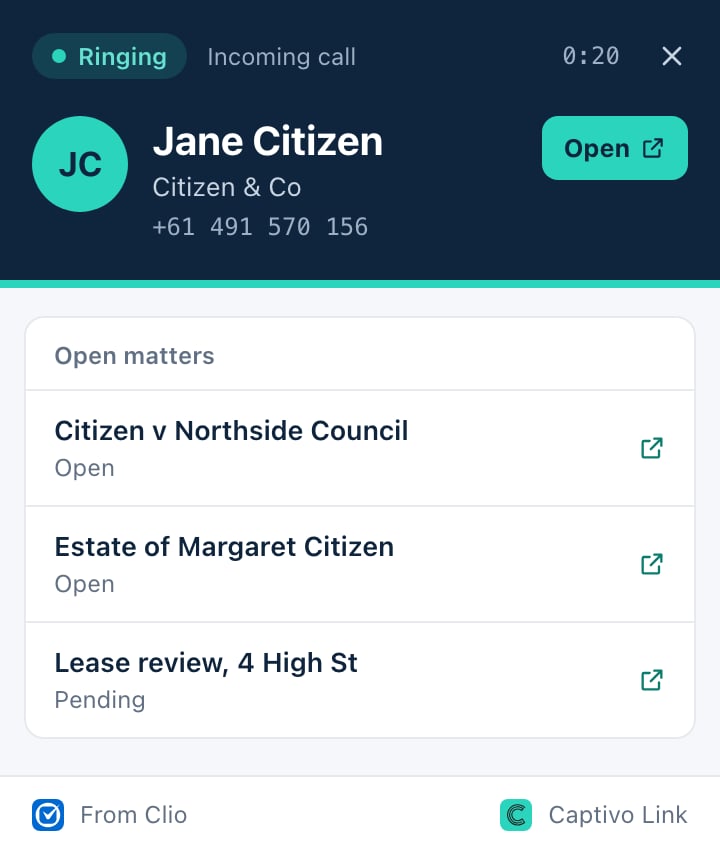
The caller window while the line rings (sample)
Who can use it
- Anyone with a call-logging seat in a Captivo Link workspace whose calls are being logged. It’s included with the seat, at no extra cost.
- It runs in Google Chrome or Microsoft Edge on a computer.
- Each person signs in with the work email they use for 8×8.
For admins: getting it to your team
The extension is unlisted on the Chrome Web Store, so it doesn’t come up in a search. Your team installs it from the link in Captivo Link.- In Captivo Link, open Chrome extension in the side menu. It appears once your workspace is logging calls.
- Click Copy link and send it to your team by email, Slack or Teams.
Installing it for the whole firm
If your firm manages its browsers centrally, IT can install the extension on everyone’s at once. Each person still signs in once with their work email. The Chrome extension page in Captivo Link has the values to copy.- Google Chrome, through Google Workspace: in the Google Admin console, go to Devices → Chrome → Apps & extensions, and add it by its extension ID.
- Microsoft Edge, through Intune or Group Policy: add the value shown on the page to Edge’s
ExtensionInstallForcelistpolicy. It installs the extension from the Chrome Web Store.
Setting it up
Installing the extension opens its setup page. It takes about a minute.In Microsoft Edge, the first time you open the install link, Edge asks to Allow extensions from other stores. Click Allow, then Add to Chrome: it installs in Edge.
1
Sign in with your work email
Enter the email you use for 8×8 and click Email me a code. We email you a 6-digit code, which works for 10 minutes. Enter it to sign in.If you have a seat in more than one workspace, choose the one whose calls this browser should show.
2
Connect 8×8
Sign in with your usual 8×8 login in the panel on the page. Once it shows the dialpad, click I can see the dialpad. The extension can now hear your phone ring.
3
Call yourself to try it
From your mobile, ring your 8×8 number. The caller window pops up while it rings.
When a call comes in
The caller window shows:- A known caller: their name, company and open records (matters, deals or tickets, depending on your CRM). Click Open for the contact, or click a record to open it.
- Two contacts on one number: both, so you can pick the right one.
- A colleague: calls from your firm’s own 8×8 extensions show as a colleague.
- An unknown number: the number, and that it isn’t in your CRM.
Settings
Open the settings from the gear in the extension’s toolbar popup.
The toolbar popup also shows whether caller ID is working, and today’s callers. Click one to see their window again.
Troubleshooting
I didn't get a sign-in code
I didn't get a sign-in code
Codes only go to people with a call-logging seat in a workspace whose calls are being logged. Check your spam folder, then ask your admin whether your seat is switched on in Captivo Link.
Nothing pops up when my phone rings
Nothing pops up when my phone rings
- Open the toolbar popup. If it says Sign in to 8×8, click it and sign in until you see the dialpad.
- Check Show the caller window is on in the settings.
- Calls from your firm’s own 8×8 extensions show as a colleague. To test, call from a phone that isn’t on your firm’s 8×8.
The popup says it's not showing callers
The popup says it's not showing callers
The popup says why. If your seat has been switched off, or your workspace’s CRM isn’t connected, ask your admin.
Privacy
- The extension never holds your CRM login. Lookups go through Captivo Link, using your workspace’s connection to your CRM.
- Today’s callers are kept in the browser’s memory only while it’s running, and never written to disk.
- It only looks up the number calling you. It doesn’t read the web pages you visit.